• Staff Applications are OPEN! [ Staff / Moderator ] More Info HERE Help us make a better forum for everyone!

Calibre - Ebook creation/conversion/editing - Tutorial

Basics of HTML & CSS

HTML stands for Hyper-Text Markup Language. It is intended as a layout format primarily. XML in the case of XHTML is basically the same, except it is a little more strict on the rules as it's intended for data formatting and storage. But that isn't important.

HTML uses Greater-than and Less-than as escapes <> for the markup language. For every tag that opens, there needs to be a tag that closes it, which uses a forward slash before the tag to close it. <b>bolded text</b> which will look like bolded text when it is done.

The most common tags you will see and use, are as follows.
<p> - Paragraph tag. These basically specify the size and area of a paragraph, and indent appropriately.
<b> | <strong> - Bold Tag, This will Bold Text
<i> | <em> - Italics or Emphasis Tags; This will Italicize text.
<u> - Underline. I'm sure it's pretty obvious what this does.
<img> - Image Tag, which will display an image.
<table> - Table tag, which lets you subdivide an area.
<h> - Header tags, usually h1, h2, h3. These bold and act as markers so you can automatically create your TOC
<hr/> - Horizontal Separator. A visible separator, which i use to replace *** entries when i see them.
<center> - Center tag....​

In the event you don't need to close a tag, like the image, you use a forward slash at the end of the greater-than. like />. <hr/> being the easiest example.

Basic HTML structure will likely do the following.

HTML:
<html>
<header>
<title>STORY TITLE GOES HERE</title>
</header>
<body>
<p>TEXT AND STORY GOES HERE</p>
<p>usually in paragraph tags, otherwise it's a endless single sentence that's impossible to read</p>
</body>
</html>

Images. This takes the form of <img src="filename" />, as it's basic use, but I'd add in a width percentage as i usually only use it for cover or full page images.
So <img src="filename" width="95%" />

Tables are a bit complex if you make them complex. But tables will align data much like a spreadsheet. Adding to these we have new codes, tr and td (table row and table data), and th (Table Header) which just bolds it.

So if we did a 3x3 multiplication table, we would do

<table>
<tr><td/><th>1</th><th>2</th><th>3</th></tr>
<tr><th>1</th><td>1</td><td>2</td><td>3</td></tr>
<tr><th>2</th><td>2</td><td>4</td><td>6</td></tr>
<tr><th>3</th><td>3</td><td>6</td><td>9</td></tr>
</table>

123
1123
2246
3368


If a class="named" is present, then it may be using a specific Stylesheet that's loaded in. Style sheets usually specify a type and any modifiers from the default HTML, giving a consistent formatting through a HTML file.

CSS:
hr {
width: 50%
    }

In this case the horizontal break will only cover half the screen.

There are a lot of properties i don't understand in CSS, but looking them up and editing and seeing how it looks in the preview will go a long ways. Regardless there will likely be a <style link="filename" /> tag up before the body, which applies to the whole file. Using converters i often see calibre1 calibre10, etc. Just know you probably won't interact with them much, but you can learn more from W3Schools along with more HTML.

A final story output may look like the following.
HTML:
<html>
<header>
<title>Super amazing story!</title>
</header>
<body>
<img src="cover.jpg" width="95%" />
<center><h1>Yano's amazing story!,</h1></center>
<center><h3>Chapter 1</h3></center>
<p> It was a dark and stormy night. Like really dark and stromy, and rain,
 yeah there was rain and it was wet.... and it was getting everywhere...
 Uck your boots are dirty!</p>
<hr/>
<p>Now that your boots are wiped off and you're inside. Let me tell you a story...
 here let me find the book....</p>
<img src="book.jpg" width="50%" />

<center><h3>Chapter 2</h3></center>
<!-- etc etc you get the idea -->
</body>
</html>
 
Last edited:
Overview - first look at Calibre

As a GUI editor it isn't bad. I have some minor gripes about it. Regardless, the upper buttons are common use buttons. Add files, load files, save, Debug, Check files and edit TOC. Most of this feels like it's obvious, but it seems it isn't quite so. Still most of the details will go in more detail later. There's several features i haven't touched so i can't guide you through those yet.

Calibre buttons.png


Now the main screen you'll end up using, includes the file manager, editor and preview. If you don't see a live preview and you want it, Click View (above the blue <) and check the Preview box.

manager_preview.png


Lastly, if you check for errors, you may have to run it several times as you fix errors as it just stops further checks when there's major errors.

check_errors.png


By far though the best way to get familiar is to just start using Calibre. My own first experience i converted a txt book to epub... then noticed on the next post someone already did it, and threw my effort away. But that hour of experience paved the way to further use of the app once i got some rest.

If you want to tinker i suggest copying a ebook and then opening that one instead, so if you make any mistakes you won't affect the original.
 
Overview - Epub files layout, and opening epub as directory

When you make a brand new epub, you get the following files.
META-INF/container.xml - points to the opf file
metadata.opf - list of files, meta data like author description, what program generated this, etc.
mimetype - specifies it's an epub/zip
start.xhtml - your book/story starting point by default
toc.ncx - Table of contents, defaults to start.xhtml

By default any files you add will be in this base directory, though you can move them to wherever you want so long as the opf file says where the files are at. If you go to Tools->Arrange into Folders, it will grab everything of certain file types, and move them into the folders. Not only that, it will update all links to point to the correct ones. This is more a final clean-up step unless you're merging multiple books into a single book.
arrange.png


The content.opf (or metadata.opf in this case) will have a handful of entries you will want to be editing.

Within the metadata tags, you have (these follow the same HTML closing tag rules as before)
<dc:description> - Book description. Synopsis or teaser paragraph of basically what the book is about or what to expect.
<dc:creator opf:role="aut"> - Name of the author.
<dc:title> - Name of the book.
<dc:subject> - Tag identifiers, for genres, kinks, fiction/non-fiction, and anything else relevant.

Under the Manifest, you'll have basically 4 types of entries you'll want to make sure are right. (Check for errors will let you know, but I'd say fix them manually). To note each ID must be unique. the href="" references individual files.
<item href="Total_Recall_split_000.html" id="id100" media-type="application/xhtml+xml"/> - HTML/XHTML files, basically what is actually displayed.
<item href="stylesheet1.css" id="css1" media-type="text/css"/> - Style sheets, you can probably ignore unless you need to edit/add some.
<item href="cover1.jpeg" id="cover" media-type="image/jpeg"/> - Image files. These will have media type of "image/png" or "image/jpeg". (other types do exist, but it's unlikely you'll be using those)

Other entries may include the Table of contents, fonts, it even mentions audio and video. Assuming animated gifs are supported, could be useful for a Harry Potter book where newpapers are alive.

Sometimes when i'm adding several images for cover images or html files, i'll just edit the opf file and copy a related entry and change the name/id as it may be faster than importing. (and when doing OCR work, removing 50+ images that aren't going to be there anymore is also easier that way, though i'm working with an imgbook in those cases and reducing how much it complains about seems easier to me).

Regardless. Assuming you use 7zip or some other archiver, you can extract the epub, you'll get the raw files, going to File->Open Epub (as directory) you can open and modify files and see exactly how the final zip file will result in.
extract_epub.png


test_filelist.png

open_epub_dir.png
open_epub_dir2.png


Once you navigate to the directory (and see the META-INFO directory), select it. If done right, the ebook will load as normal, and you can keep editing, while also seeing exactly what changes in the file explorer. Mind you, if you make changes outside of Calibre, probably re-load the Calibre Epub as Directory so it syncs up.
 
Last edited:
Making an Ebook (HTML/DocX Source)

If you have a single DocX or Html file, you can likely import it as a new book. I'm not a fan of this, but testing with a docx file, words get bunched together that shouldn't be. And doing the HTML just creates a new book with the htm selected as the starting file pre-populated.

import_new_book.png


I suppose whatever works as long as no errors occur, or you fix them. But not all sources are equal. Literotica and web sites tend to have a LOT of junk before and after the story. This means you may want to just copy the story block and drop it in the body of the starting html file.

stripped-poem.png


html-paste.png


Once you get the story in, probably find any chapters and convert to headings. I like centering them since it looks more pronounced. I'd also convert *** to <hr/> Horizontal separators.
generate_toc.png
header-generates-toc2.png


Remember when generating the TOC, it scans ALL FILES. (well you can override that), and it will go from top to bottom in the file order list since that's the order it assumes you want your book to be in. (If you have multiple files/chapters this way or have to split a very large book/file that will be relevant, for single files, it doesn't matter)

Add a cover, go to Tools->Add Cover, and select an image you have loaded. Don't have one? Then you can import one right there.

cover_vodka_setting.png


cover_vodka_aftermath.png


At this point your book is more-or-less done.
 
Making an Ebook (TXT Source)

Going off of what we have above, this assumes you have a book in a text format. No you can't just drop and paste like the html. (Well technically you can, but expect a wall of text that no one will read). In the event you can't give a damn you can preserve current layout of the text by using the <pre> tag. Pre is just Pre-Formatted. This means the word-wrap feature that html/epubs are useful for basically goes out the window. Good for the poetry like the above example, not so good for stories you grabbed off ASSTR.

pre-tag.png


So you'll have to take a couple steps using RegEx and a little elbow grease. See my Regex In a Nutshell post.

First find and make sure paragraphs are set together, giving a full empty line between non-related paragraphs. A lot of times you don't need to worry about this, but sometimes it's not so easy.

First press Ctrl-F, this will open the text functions you need.
Have it Say under Replace 'Regex' and 'Marked Text',
then select only the raw text you pasted in,
right-click and 'mark text'. This is important.
mark-text.png
With Regex, have the 'find' field set to: ^(.+)$

Set the Replace with: <p>\1</p>


This is short for 'wrap all non-empty lines
with paragraph flags.'
Yeah this alone doesn't solve the problem.
It's effectively the same as the source text now but in html.
replace-par.png
Next do the regex find: -</p>\n<p>

Replace with: {empty, yes delete everything so this is totally empty}


This will remove closing/opening tags that are back to back.
Words that are split some-where due to line length will be joined. Lastly
replace-sep-word.png
Next do the regex find: </p>\n<p>

Replace with: {a single space}


Same as before, but adds a space so words don't garble/join in odd ways.
replace-parpar.png


Optional Regex. find: ^</p>\*\*\*+<p>$
Replace with: <hr/>

This will replace *** type tags with a horizontal break. Adjust the stylesheet to reflect the horizontal break's cosmetic look.

At this point the text is now html compliant and you can finish with the previous html ebook making.
 
SpellCheck

Activating SpellCheck will look for any words that don't match the dictionary. Naturally this will flag perfectly normal words, depending on what region you're in, colour may be wrong, names usually are wrong, and words that should be hyphenated may also crop up.

spellcheck.png


I would suggest going down the line, double-clicking on the word will take you to the next instance of the misspelling. Sometimes you'll find different spellings of the same name of a person, or using a different quote, like Allie's and Allie`s will show up as two different spellings. If a quick correct one isn't in the right box, you can just type in the right word and click 'change selected word to' and it will replace all instances of it.

Course a lot of sexual words will likely come up as errors, precum and clit I've seen among them. Add these to the dictionary, or ignore for this instance of the check. Maybe change prebake to pre-bake if it seems to make it easier to read.

While doing OCR work, i see a lot of instances of misspellings from the wrong word/letter being used. Usually involving the letter I and L usually; These may end up as P, L, l, {, }, [, ], /, 1, !, or II sometimes. Then RN usually results in M. So you see bom (should be born) and concem (should be concern) a lot.

This can take a while, but i usually find it doesn't as there aren't that many fixes to make.
 
Finding and Fixing Common Errors

I've seen several types of errors to commonly crop up.

Parsing failed: Opening and Ending tag Mismatch - Auto generation rarely causes this, so it's probably a editing error. You opened a tag, didn't close it, changed a tag but didn't change the other side, etc. Example might be <h2>Chapter 3</h3> where it should both be h2.

If you use <br> tags, bulk replace with <br/> since the br tag never needs to close.

The most common tags that you don't close, are <br/>, <hr/>, and <img /> tags. If you use a table with an empty data field, you can have a <td/> tag instead of <td></td>

Bare text in body - Basically it doesn't like stuff to have some wrapper around it, be it a paragraph div or other. Accepting the suggested action doesn't hurt.

Link points to a location not present in target file - Either a file is missing, or the ID changed or was removed. If you look in the Table of Contents during editing, good links are Green, and Bad ones that it can't find are Red. It may come down to removing all id's and letting the Tale of contents generator add new links, especially if you got them out of order and all the sudden the second item is labeled 7. It assigns ID's as it needs them, so you can totally get them all in the wrong order especially when you find it goes Chapter 1, 2,3, 6, 7, then you go back and find and add headers to 4 5 & 6 but now the ordering is 1, 2, 3, 6, 7, 4, 5 in the linking. Quite annoying.

Should you want to rip all ID's out and have Calibre regenerate them during another TOC pass, use the following regex string, as it should strip unwanted ID's out. Use with Caution.

Find: [ ]id="[^"<>\n]+"
Replace: {Empty}

The file {IMAGE} is not listed in the manifest - The result of copying a file into the epub/directory rather than importing it. A question Mark will appear next to the file in the File Browser. This you'll have to add manually into the OPF file, as it only offers to delete the offending image, rather than adding it. Slightly annoying.

Usually when i add several images at once, I'll just open the content OPF file and copy the first image (png or jpeg) that i like, then paste as many copies as i need and adjust the filename in the href and the id.

The file {IMAGE} is not referenced - - A result of having an image but not yet using it. I get this when i add several images/covers at once, and then i find out which one i forgot to add to the appropriate HTML files.

The file {HTML} is not referenced - Split files or multiple chapters from merging separate files/books can result in this. 'Append to the Spine' is suggested, however you probably want to append them in order otherwise you'll have to fix this later anyways. Though dragging and dropping the files in the explorer will change the order.

Filename contains unsafe characters - Has quotes, spaces, or other special characters present. The default action to fix this is to rename it and make these 'unsafe' characters underlines.

Your Regex doesn't work on my text file when i use </p>\n<p> - Whitespace is invisible. Linux/Unix prefer \n (newline) while Windows uses \r\n (Carriage Return & Newline). (Mac likes \r, just because). Replace </p>\n<p> with </p>\s*<p> and it should work, as that tells it to be more linient on whitespace matching.
 
Last edited:
Adding/replacing covers
Some books have no image, low quality images, or a placeholder image generated from a site.

Assuming you aren't going to look at the above sections, this is all you need to know.

1) Within the Calibre editor
This is pretty easy, either replace or import an image, and rename it to the name you want.

1a) Import the new image with File->Import files

1b) Using the File Browser on the left side, you can right-click and select replace {file] with file

file-replace.png


2) Hacking it with an Archiver

When you don't want to open a full editor up, and you checked and the file is low quality, using 7zip (or other archiver) drag and drop the new file in, delete the old file, rename the new file as the old one.

Mind you NEITHER of these methods take resolution into account. A number of titlepages include width/height information so it might not display right as a preview.

2b) Editing the titlepage.

Glance at the resolution of the image, it will likely be 900x1300 or something like that. Then extract the titlepage and edit it in a text editor. In the file you should likely see two lines similar to this.

HTML:
<svg xmlns="http://www.w3.org/2000/svg" xmlns:xlink="http://www.w3.org/1999/xlink"
     version="1.1" width="100%" height="100%" viewBox="0 0 473 751"
     preserveAspectRatio="none">
  <image width="473" height="751" xlink:href="cover.jpeg"/>
</svg>

the 0 0 473 751 represents the resolution of the view and image, as well as width="473" height="751" telling exactly how big the image should be (or be scaled to). Edit both of these. If the resolution was 900x1300, then you should have 0 0 900 1300, and width="900" height="1300"

You might also cheat and delete the height and change width to width="100%". But this information for some readers will tell it how much memory to allocate if it's memory constrained. Or use the editor and have it do it with the next step below.

Finally last step, copy the temporary extracted titlepage back into the epub so the dimensions are updated.

----

Adding/replacing the coverpage.

If you already have a coverpage you need to replace, first delete it. It will likely be titlepage or coverpage or something similar, it will most likely be the very first item on the list.

Once removed, go to Tools->Add Cover Page, and select the image you want to use as a cover.

cover_vodka_setting-png.1099401


A new coverpage html file will be generated (using the image you selected) and you should be done. Save and quit.
 
Table of Contents

For very small books, a TOC is trivial. But in larger books, it is quite needed. There's two different files of these, the toc.xhtml file, which is just a generated html file from the TOC offering quick hyperlinks, as well as viewable on browsers.

HTML:
  <h2>Table of Contents</h2>
  <ul class="level1">
    <li><a href="start.xhtml">Book Name</a>
      <ul class="level2">
        <li><a href="start.xhtml#toc_1">Chapter 1</a>
            <ul class="level3">
              <li><a href="start.xhtml#toc_2">Scene A</a></li>
              <li><a href="start.xhtml#toc_3">Scene B</a></li>
            </ul>
          </li>

        <li><a href="start.xhtml#toc_4">Chapter 2</a>
            <ul class="level3">
              <li><a href="start.xhtml#toc_5">Scene C</a></li>
              <li><a href="start.xhtml#toc_6">Scene D</a></li>
            </ul>
          </li>
      </ul>
    </li>
  </ul>
toc-xhtml.png

Safe to say, you should only generate the inline TOC when you are done, as if you make any changes (like appending notes or new chapters) it won't appear and you'll have to make changes by hand or generate this page again.

I'd recommend the order of these files to be the Cover Page, acknowledgements or other notes you think are important, the TOC, then the chapters of the book. At the end should probably be anything extra, credits, peek previews, etc.

If i make a book from scratch i will append the 'about the author' to the end of the TOC, as it's usually a short paragraph and a few links.

The TOC.NCX

This is an XML file. Ultimately it's just a bunch of navigation points, but it's built a little differently.
HTML:
  <navMap>
    <navPoint id="num_1" playOrder="1">
      <navLabel>
        <text>Book Name</text>
      </navLabel>
      <content src="start.xhtml"/>
      <navPoint id="num_2" playOrder="2">
        <navLabel>
          <text>Chapter 1</text>
        </navLabel>
        <content src="start.xhtml#toc_1"/>
        <navPoint id="num_3" playOrder="3">
          <navLabel>
            <text>Scene A</text>
          </navLabel>
          <content src="start.xhtml#toc_2"/>
        </navPoint>
        <navPoint id="num_4" playOrder="4">
          <navLabel>
            <text>Scene B</text>
          </navLabel>
          <content src="start.xhtml#toc_3"/>
        </navPoint>
      </navPoint>
    </navPoint>
  </navMap>

As you can see, it is a tree embedding of a NavMap, NavPoints, and then they are labeled with a link to what file and what ID within the file. I don't recommend editing this by hand unless it's trivial.

Not every chapter/part will have the right levels, wrong headers may be used or is just embedded wrong. You can raise/lower or embed the navpoints until the tree looks right. Mind you if you use the green Recycle button, it will delete the navpoint and everything within/connected to it.

You can also select several items and drag them onto another navpoint to move them under. This won't change the order in the story they show up in (that's done in the file browser).

Double-clicking on any of them chapters/names will let you edit it.

You can also select several in a row if they are badly named and do a 'bulk rename', right click and select it. It will then let you do a prefix and starting numbering, making inconsistent 'Chapter 1, chapter: 2, ch 3' etc etc to have the same exact look/feel. Don't forget to add the space at the end as it literally just appends the one with the other. You may end up bulk-renaming three or four times until you get the exact look you want.

bulk-rename.png


I can only imagine how much a pain this would be when doing a Choose-Your-Own-Adventure, obfuscating the title and linking parts together.

If you you are lacking header files or links in which to generate from, you can manually create the links, which will then point you to individual files and locations. Choose the file, location (line in green) and give it a name, then drag the new point to where you want. Pretty easy.

toc-manual-nav.png
 
Merging books

You'll either have a bunch of short books, or multiple books you want to put together. There's basically two methods you may want to do.

1) Extracting just the story portion of the book and adding it to the spine
2) Adding the whole book, then appending it.

If the books each fit neatly in to individual htm files, then grabbing just the single htm may be preferred. I did this when merging Macy Chu's works after OCR when i just didn't see the point of having 4 parts when a collection of all four parts was better. Either way you'll be using an archiver first.

So first step, extract the book(s) in question. Make them in their own directory to keep things separate. Since i use 7zip i will use that. Right click on all of the files, select 7-Zip->Extract to "*\". This will extract all the files as separate folders based on their filename.

Either make a new book, or decide which of these books should be your master/base. I'll choose chapter 1 in this case.
looking-at-structure.png

Looking at this example all three books are identical in structure, except they are nicely named Chapter 1, chapter 2 and chapter 3. So i copy the others into chapter 1. If you need to you can rename them to make them, as they may just be start or index, so having it say book2-slaying-the-dragon for said book, then sure that works.

At this point, you can just go into the editor, open as epub-directory, look for errors, find the missing files and append them in order to the spine. Update the Toc, the cover page (if you need to) and you should be done.

Personally, should there be unique cover pages for each part i like to copy those too, and then add the cover to the beginning of the book.

Whole Books

Okay, now that the easy one is out of the way, time for the harder one. Find the base directory and rename it to the ordering of the books you want. So Book 1 becomes 1, Book 2 becomes 2, etc. Then drag them all into the new base book.

Next, delete certain files. You don't need multiple mimes, META-INF directories or container.xml's etc, these are just in the way. Remove any files that are not the story in question, so 'about the author' you only need one of them unless you don't feel like cleaning these out. Don't delete the toc.ncx or content.opf until after you are done, as you'll likely be copying bulk from these files.

Open the content.opf of your base book and of the next book in the series. You'll be copying most of the <item> tags, and you should probably copy from the spine too. Only difference is you need to rename the id's and the paths appropriately.

While i'm using Notepad++ you can easily do this in notepad, or do this in the editor (just mark the text first).
Find: id="
Replace: id="1-
Find: idref="
Replace: idref="1-
Find: href="
Replace: href="1/
manifest-convert.png


You should get something like this. This updates the Id's so they don't clash, and updates the links to point to the relevant parts. Everything within the 1 folder should reference it's data correctly so that isn't an issue. Now you should be able to copy. Remember to change the 1 to whatever actual directory/book you're using...

Copy the contents in the spine you want to keep...

spine-guide.png


Next you'll want to open the toc.ncx, you'll be doing a bulk replace before copying as before, though id's and numbering are best left to the editor so we just want to strip them. So regex.
Find: [ ]id="[^<>\n]+>
Replace: >
Find: src="
Replace: src="1/

The xml nav points should be clean now. Copy and paste all NavPoint entries into the base toc.ncx and save.

At this point your work is mostly done, open the editor, look for errors and fix them until the epub is ready for use.

Assuming uneeded files were removed, you WILL have errors in the Toc. Just remove the nu-neccesary entries. Id's and Play order data should repopulate afterwards.

toc-removed-files.png
toc-removed-cleanup.png


Though you could just leave the files and remove duplicates and excess sections rather than manual deletion.

Though it seems a lot of CSS may get flagged. You can probably ignore it unless you're better versed in CSS.

Double check the spine/order of files, TOC are all right. If that's all good you're probably good to go. Might replace the coverimage if there's one for the whole collection/grouping you're doing.

 
Optimizing books

Optimizing books at the minimum (at least to me) is making the images as small as reasonably possible (without quality loss) and then getting max compression on the zip file. This is an extra step most people don't take, and i have a script that does it for me on whole directories of files, but requires CygWin, which for a lot of people is probably out.

This requires external tools. OptiPNG, JpegOptim, and AdvanceCOMP tools. I'll drop that script here, may require slight tweaks to run in a proper Linux/Unix environment.

If you ARE using linux, get the appropriate toolsets. aptitude does a nice job.

Windows users, a little DIY is needed. I'll also include the binaries and scripts to help along (binaries are all win32 so it's compatible with older versions of windows). When you download the packages, prefer the MingW over CygWin. CygWin programs sometimes demand the use of cygwin1.dll.


JpegOptim - A handy little tool, can convert between progressive and normal, force a Jpeg to be a certain size or percentage smaller if you choose. The base form my scripts use is to just optimize both normal and progressive, and you keep the best one for size.

jpegoptim -S 100 test.jpg - reduces the size to 100k, will change the quality
jpegoptim --all-progressive test.jpg - optimizes and uses progressive output.

Historically a common format was being debated and JPEG had a huge suite of complex formats. It was too much, so they decided universally on JFIF which was fairly easy to implement, good compression. Alas that means Jpeg2000 and slight improvements didn't catch on. But that's fine. Computerphile has videos on how Jpeg compression works, but JpegOptim recompresses the huffman tree it uses to get better compression, i usually see 3%-20% smaller at no loss what-so-ever. Stripping the metadata shakes a few hundred bytes to a couple k and doesn't seem to be important.

OptiPNG - PNG being lossless, this will attempt a few dozen to thousands of iterations based on how the encoding (per line) will best optimize. It will also reduce the palette if it can and use a range of zlib compression to find the best match. Exhaustively passes 1000+ can be slow, while about 30 passes on the normal range will give decent savings. Some programs and games really don't like some of the options like the filters, so turning those off may be neccesary. (Played Dungeons of Dredmor? Well that game's PNG's really don't like filters and will just crash with no explanation so yeah...).

optipng -oN pngfile

optipng is pretty easy going, and has a complex slew of optimization passes. the default 2 is probably sufficient for most people. You can probably drag-and-drop an image on optipng and it should do a minimal optimization pass for you.

AdvanceCOMP tools - I love these tools. Some years ago one of Google's side projects resulted in Zopfli. What's Zopfli? Well it's just an exhaustive 'work harder get smaller' compression using the zlib standard. Thus you can recompress zip, gzip, png, and a myriad of other types of files with it using these optimized compression algorithms. (They just take a LOT longer). Usually i see 2% at the lowest end, or a tonne more. 7z is better than zip, but if you have to use zip, zopfli does a well enough job.

Advdef will recompress zip and png files, resulting in a little extra savings.

Advzip only does zip files. But that's good enough too.

Both of these in the command-line is pretty easy.

advzip -zN zipfile

N being the level. 0 - uncompressed, 1 - fast, 2 - normal, 3 - max (normal), 4 - Zopfli

advdef uses the same format, but just doesn't work on zips. Note, if you uncompress a gzip file, gzip sometimes doesn't like to recognize it as a gzip anymore and barfs. Just heads up.

Scripts

I've included 2 scripts, one to optimize images, and one to optimize epubs/zip files. Drop any files in the same directory as the script and compression tools, and run the optimize and it will work on them. If the tools can, they will preserve the dates, but that isn't always possible.

Once you've optimized your images, zip down your book, and pass it through the epub optimizer and rename. And you are basically done optimizing.
 

Attachments

  • compression-tools.zip
    compression-tools.zip
    942.6 KB · Views: 48
  • rezip.sh.txt
    rezip.sh.txt
    2.8 KB · Views: 44
Last edited:
Removing Excessive Duplicates

Occasionally there are converted PDF's with an excessive number of files. Most of these files aren't even unique. Some PDF converters will generate and put all related images per-page. So an index-1_1.jpg means it's page 1, and the 1st image. You'll see index-1_2.jpg index-1_3.jpg as well, which means there's 2 other images. Etc.

There's a couple ebooks i came across that were 'textured' meaning it had a background... on every page.... so 200 page book equals 200 identical copies of the same image in the background. This means you can remove megabytes from removing duplicated images.

They will also do this for CSS pages. If you wrapped the epub in a 7z and just let it lightly compress, if it greatly decreases in size then it's either uncompressed epub, or has duplicates as zip files stores each file separately and only within 64k range window. (Limitations from DOS that just happens to carry over).

hashids.png


Keep in mind, unless you are a unix/linux user or more advanced, most of this won't make sense to you from this point on.

So when you've identified a section of duplicates, there are bound to be a lot of them. scanning the files with an md5sum and sorting by the hash, all of the identicals will be next to eachother.

Rich (BB code):
$ find -type f -print0 | xargs -0 md5sum | sort
113acc1e2f9e62c870e4bae91dfb170a *./OEBPS/Text/part0012.xhtml
16a3349bb0e4fd0627a862590a170f4b *./OEBPS/Images/cover00300.jpeg
17f37d3df43585216af8c165295bf092 *./OEBPS/Text/part0011.xhtml
1ce800fa237da566619e15e7a610883a *./OEBPS/toc.ncx
218e0573e4a33f4e6da734230c276d1c *./OEBPS/Text/part0003.xhtml
238a21048b0b3ba1712275de8c808043 *./OEBPS/Text/part0006.xhtml
2eff5bf851d0c7aedce5d96fed887a7c *./OEBPS/Text/part0015.xhtml
3c453de2bcc91571668d0fe5d363ea45 *./META-INF/container.xml
4154e1f4f9c0e002cc44aae97103ebe2 *./mimetype
48e443c9f9443773aa225a2510059392 *./OEBPS/Text/part0001.xhtml
53610026c391e90ba053b2ffb0139be1 *./OEBPS/Text/part0018.xhtml
606900f2d74cbd8bb11d9bcf656454f0 *./OEBPS/Text/part0000.xhtml
647d45d893214edc80cdac7a8809a40b *./OEBPS/Text/part0013.xhtml
686c2961406d7c695a5b46606f7a5596 *./OEBPS/Text/part0005.xhtml
6e74945e73e96a93c4e949c5ae5bc54b *./OEBPS/Text/part0007.xhtml
7078a1ae507f62c1e578480e4838bbbb *./OEBPS/Images/image00298.jpeg
8559fb589b7a3040814017e620e8e23f *./OEBPS/Text/part0016.xhtml
a2bd0da30d259fa509090072df4d0984 *./OEBPS/Text/part0010.xhtml
a9d426e26b214bef35909bac7e79c0a0 *./OEBPS/Text/cover_page.xhtml
aefd3edb6dab46f4bf9ddef6e4391a8f *./OEBPS/Text/part0004.xhtml
b21a9dec5618d70b8bf4f0a874327419 *./OEBPS/Text/part0008.xhtml
b284e0e3b755a6b9638ab6f86a7b97fc *./OEBPS/Text/part0009.xhtml
c6a69d5954373e84beca220d00bc0c9d *./OEBPS/content.opf
ddfeb53659e1c862dd6e1498f4536015 *./OEBPS/Text/part0014.xhtml
eb9131693407ec587ec7d9fc5e01ec6a *./OEBPS/Images/image00299.jpeg
ed2547640110f5a0bd01ff98d6b129ae *./OEBPS/Text/part0002.xhtml
ed50e567feb03f9cda75b0c21be0e4bd *./OEBPS/Styles/style0002.css
ed50e567feb03f9cda75b0c21be0e4bd *./OEBPS/Styles/style0003.css
ed50e567feb03f9cda75b0c21be0e4bd *./OEBPS/Styles/style0004.css
ed50e567feb03f9cda75b0c21be0e4bd *./OEBPS/Styles/style0005.css
ed50e567feb03f9cda75b0c21be0e4bd *./OEBPS/Styles/style0006.css
ed50e567feb03f9cda75b0c21be0e4bd *./OEBPS/Styles/style0007.css
ed50e567feb03f9cda75b0c21be0e4bd *./OEBPS/Styles/style0008.css
ed50e567feb03f9cda75b0c21be0e4bd *./OEBPS/Styles/style0009.css
ed50e567feb03f9cda75b0c21be0e4bd *./OEBPS/Styles/style0010.css
ed50e567feb03f9cda75b0c21be0e4bd *./OEBPS/Styles/style0011.css
ed50e567feb03f9cda75b0c21be0e4bd *./OEBPS/Styles/style0012.css
ed50e567feb03f9cda75b0c21be0e4bd *./OEBPS/Styles/style0013.css
ed50e567feb03f9cda75b0c21be0e4bd *./OEBPS/Styles/style0014.css
ed50e567feb03f9cda75b0c21be0e4bd *./OEBPS/Styles/style0015.css
ed50e567feb03f9cda75b0c21be0e4bd *./OEBPS/Styles/style0016.css
ed50e567feb03f9cda75b0c21be0e4bd *./OEBPS/Styles/style0017.css
ed50e567feb03f9cda75b0c21be0e4bd *./OEBPS/Styles/style0018.css
ed50e567feb03f9cda75b0c21be0e4bd *./OEBPS/Styles/style0019.css
ee48fea471d198c2626f90fc3d20f258 *./OEBPS/Text/part0017.xhtml
f62e9d00ea6a1434767d17d51624445a *./OEBPS/Styles/style0001.css

So deleting the unneeded files from the content.opf is pretty easy.
But what about the files referencing those css pages? Well sed has your back. A little bash code mumbo jumbo...

Bash:
for X in OEBPS/*.html OEBPS/text/*.html;
do
sed -e 's:/Styles/style[0-9]*.css:/Styles/style0001.css:g' "$X" > "$X.x";
mv "$X.x" "$X";
done

If you are familiar with sed you'll recognize it to be a simple string replacement forcing all styles to a single source, using a .x as a temp file, then replacing the original file. You can also make this run on a single line by removing the newlines, as all the semi-colons are there already, just replace the search/replace in sed as appropriate.

This example was a bit more trivial. But when there's a lot of jpegs, css and other files that have heavy duplicates, something a little more sophisticated may be needed.

I wrote a script to identify and remove duplicates, and you can restore them, making it useful for renpy, games and others smaller with very little effort. I'll include the script find_dup_md5.sh, along with a second one to convert the restoration output into a sed script.

When you run find_dup_md5.sh it will output to a file called 'work'. It's a bash script, which does comparisons before deleting and making new scripts.

These are:
clean - shorthand form of work, as it already verified they are duplicates this just removes the files.
restore - Copies source to destination for all duplicates
{perdir}/restore - Copies source to destination, but only within this directory.

Also this script is progressive/inclusive. I've seen a couple renpy games of like Sakura Amazon 1, Sakura Amazon 2, Sakura Amazon 3, where they reuse a LOT of assets. This means the later assets are removed and referenced from the earlier ones. Can also be used for incremental backups if you do full backup of logs or stuff, and then it will remove the duplicates from there.

So, after you run work and files are deleted, go into the inner folder where the restore is. You then want to run the second script, it will generate a restore.sed opf.sed, which are sed scripts; These are then run on the opf and *.xhtml files; then replace them. I suggest you check the work and make sure it worked right. Also with the number of files, these sed scripts may be very slow. But automated is going to be easier than fast-as-possible.

Once the redundancies are removed and html files changed to reflect it, delete the restore.sed, opf.sed and restore files, pack it as an epub and you're good to go.

So Example: Say i extracted Jacobs, Logan - Werepanther.epub, and assuming the scripts are extracted just before, then I'd do the following.

Bash:
./find_dup_md5.sh * > work #enter specific directories, or if only one * will work fine.
bash ./work
cd 'Jacobs, Logan - Werepanther'

#should have restore, and duplicate files already deleted
../dup_reduce.sh

#should at this point process the directory making .x files as temporaries. Verify it didn't much anything up.

../dup_cleanup.sh #moves the temps replacing the originals, and deletes temporary files.

Now while the above is good for obvious duplicate files, files aren't always so obvious. I've seen a hundred different Asterisk images as a separator in the same ebook, all slightly different sizes and offsets and different variants of gray. In such a case, make note of which files are all (basically) the same, choose one that looks clean and good, and then convert all the images referencing those to the one image you selected using sed. Delete excessive images (which will probably be most of them) from the opf (probably by hand) and then check to make sure you didn't introduce any errors.


NOTE: Due to time there's a break in this content. CLICK HERE to move to Merging and Splitting.
 

Attachments

  • dup_md5_reduce.zip
    dup_md5_reduce.zip
    2.8 KB · Views: 44
Last edited:
Very nice.

I do things a bit differently.

I've been using Word since the 1980's and am very proficient in it, so I convert everything to Word, using Calibre, and do all the editing and formatting there.

The only exception on that conversion is if the source material is a PDF. I've noticed that when Calibre converts a PDF, not all the formatting (e.g., italization of individual words) is maintained, also, if a sentence extends beyond a page ending in the PDF, Calibre will break this into two paragraphs.

Word, version 2014 and later, can open a PDF file and you can save it as a DOC/DOCX. When one does this, the formatting is typically retained and you don't get the issue with sentences splitting due to a PDF page ending.

You can still get some funny formatting, sentence splitting into two paragraphs, but those typically will have some other format difference that one can search for and fix them pretty easily.

The differences I've seen include, different font type or size and centered or right alignment.

I have a set of styles in Word, to facilitate any formatting required (e.g., bold, italicized, chapter headings, centered, etc.)

I'll also combine multiple books from a series into a single Word document.

Normally, when Calibre converts any source material to Word, it will create a new set of styles to provide that formatting. For example, italicized words will have a style called "0 text" or some other #, depending on the order that formatting was encountered in the book.

It will do a similar thing with whole paragraph formatting, calling them Para 1, Para 2, etc.

If, I'm only dealing with a single book, I'll leave those alone., with the exception of perhaps tweaking the fonts to be uniform in type and size for the body of the text.

If I'm combining multiple books, I have to check to make sure that any text or para styles are the same, so when you merge them, things don't look weird in parts of the book.

Word has a very good spell check and it's grammar check is pretty good, so that addresses those issues.

Since all chapter heading are based on the "Heading" styles, budling a TOC is a simple click. I don't include the page #'s, since they won't be correct once you convert to epub.

You can embed meta data (tags and comments) using the "file/info" tabs in Word, so when you convert to epub, it's all there.

I make covers using MS Publisher (again, I'm very experienced with Microsquish software) and save them as jpeg's to attach using Calibre.
 
So I discovered where the missing 'tt' 'tti' 'ft' 'tf' fault in some files originates.
Apparently sometimes when you convert a pdf to .epub with eCalibre it does it.

Do you think going to word first will alleviate this?
 
So I discovered where the missing 'tt' 'tti' 'ft' 'tf' fault in some files originates.
Apparently sometimes when you convert a pdf to .epub with eCalibre it does it.

Do you think going to word first will alleviate this?
I'm not sure what fault you're referring to.

Is it an OCR issue? I've seen OCR screw up things like that.

I didn't think Calibre could convert an image based PDF, or if it does, it simply puts a single image of each page on a page in the new format.
 
No I recently converted 'The Birthday Present 1-12 - Katt Ford.pdf' to epub using eCalibre, and it deleted those character sets (in the middle of words) throughout the file.
I had seen this before elsewhere, similar to the 'll' deletions that occur in some epubs on annas-archive.org, and now I've seen the error creator in action, at least in this case. The .pdf doesn't have these typos, but the converted .epub does.
 
No I recently converted 'The Birthday Present 1-12 - Katt Ford.pdf' to epub using eCalibre, and it deleted those character sets (in the middle of words) throughout the file.
I had seen this before elsewhere, similar to the 'll' deletions that occur in some epubs on annas-archive.org, and now I've seen the error creator in action, at least in this case. The .pdf doesn't have these typos, but the converted .epub does.
OK, I don't think I've ever seen that. But then, I don't think I've ever gone directly from a PDF to an Epub. I always go to Word first to do some editing.

I picked up AZW versions of 1-12 and 13 - 18 somewhere along the line. I'll make epubs and putt hem in her thread.
 
OK, I downloaded the Birthday present 1-12 from the first post in Katt Ford's thread.

I think the problem is inherent in that PDF.

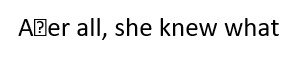
If I converted it to epub or Word using calibre, I had the problem you mentioned. The one that caught my eye was the missing "ft" in the second paragraph, "Bobbi must have heard me coming. A er all".

When I opened the PDF and copied and pasted that bit in Word, this is what showed up.

missing ft.jpg
 
Back
Top Bottom